
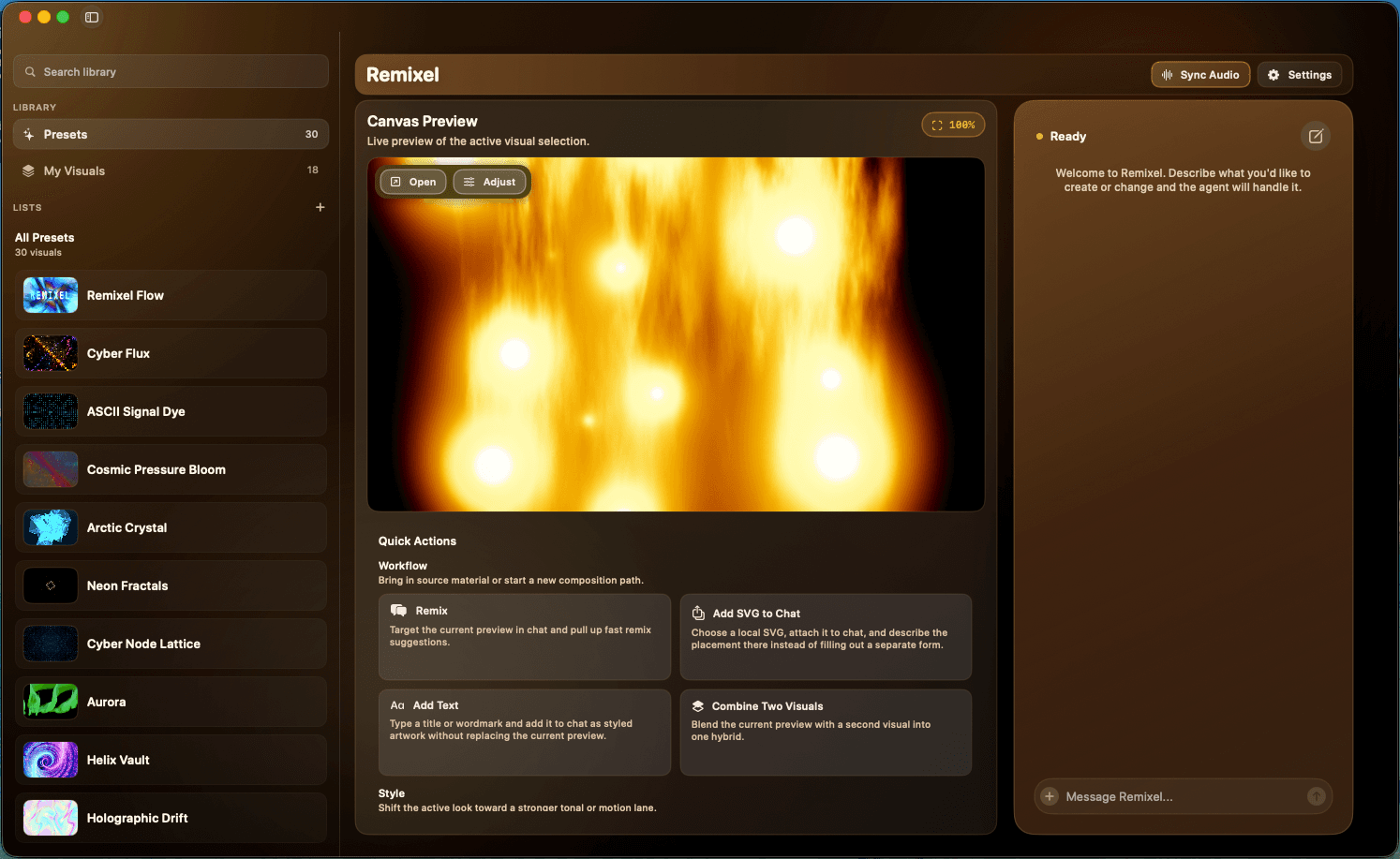
Choose what the visual should listen to
Use app audio when the music is playing in a particular app on the Mac. This is a useful starting point when you want the scene to respond to that app’s output. A window shown in the source picker belongs to an app; selecting a window does not isolate audio from other windows in the same app.
Use the system mix when you want the Mac’s combined output as the source. Be aware that sounds from other apps can then affect the picture. Use a microphone when you want sound from the physical room, an instrument, or another source that is not playing through the selected Mac app.
A microphone hears its surroundings, including voices and room noise. App or system audio gives you a more direct signal when the music already lives on the Mac. If your DJ hardware sends sound through a different device, confirm that the source you select actually receives that sound.
Check the permission for that source
For a microphone, review Remixel’s Microphone permission in macOS System Settings under Privacy & Security. For app or system audio, macOS may ask for Screen & System Audio Recording access. That permission is used by the Mac’s capture system, even when your goal is to react to audio.
Review the permission requested by the app and enable the access needed for your chosen source. If macOS asks you to restart the app after a permission change, do that before testing again. Then return to Remixel and reselect the source.
Test one scene with one track
Choose a scene, start a familiar track, and select the intended audio source. Begin with a passage containing clear changes in energy. Watch the preview, pause the track, and play it again. Look for changes associated with the sound, rather than assuming that any movement means the input is working.
A scene can have its own animation as well as audio-driven changes. It may keep moving during silence. Different scenes also use audio differently: one might change color or texture, while another changes scale or intensity. Try another scene before concluding that capture is broken.
Audio reactivity is not the same as a fixed, timecoded sequence. A scene responding to audio does not establish frame-accurate synchronization with a lighting desk or a prerecorded show. Test the response against the timing and feel you need for your set.
- Start playback in the source app and confirm you can hear it.
- Select that source in Remixel and watch a familiar scene.
- Pause and resume the track, comparing the visual’s response.
- Try a second scene to distinguish input problems from the scene’s design.
Shape the look around the music
Once the input works, use a scene whose response suits the music. If the room feels too busy, start with a calmer look or ask the assistant for a slower, less dense version. Change one quality at a time so you can judge what helped.
Remixel’s AI remixing and scene combinations require an OpenAI account with a paid subscription. The app’s own license is free. A prompt changes the scene; it cannot repair a disconnected audio source or a missing macOS permission.
If you are presenting to an audience, send the separate canvas window to your display and check the result there. Brightness, scale, and motion that feel subtle on a laptop can read very differently across a room.
Work through a missing or unexpected response
No response: confirm that the source is playing, check the selected app or microphone, and review the corresponding permission. After restarting a music app or reconnecting a device, select the source again. Test with another scene and another ordinary audio source to narrow down the cause.
Response to the wrong sounds: check whether you selected the system mix or a microphone. Switch to the intended app when you want a more specific source. If several browser tabs produce sound, remember that app capture may include more than the single tab you are watching.
Movement during silence: compare the image with audio enabled and disabled. The scene’s base animation may continue while only some visual properties react to sound. For a support report, include the scene name, source app or device, macOS version, and whether the pause-and-resume test changed the picture.
See a Remixel scene
Mosaic Prism, recorded from Remixel’s output. This is a silent visual example; test audio response with your own music in the Mac app.