
Gather the essentials
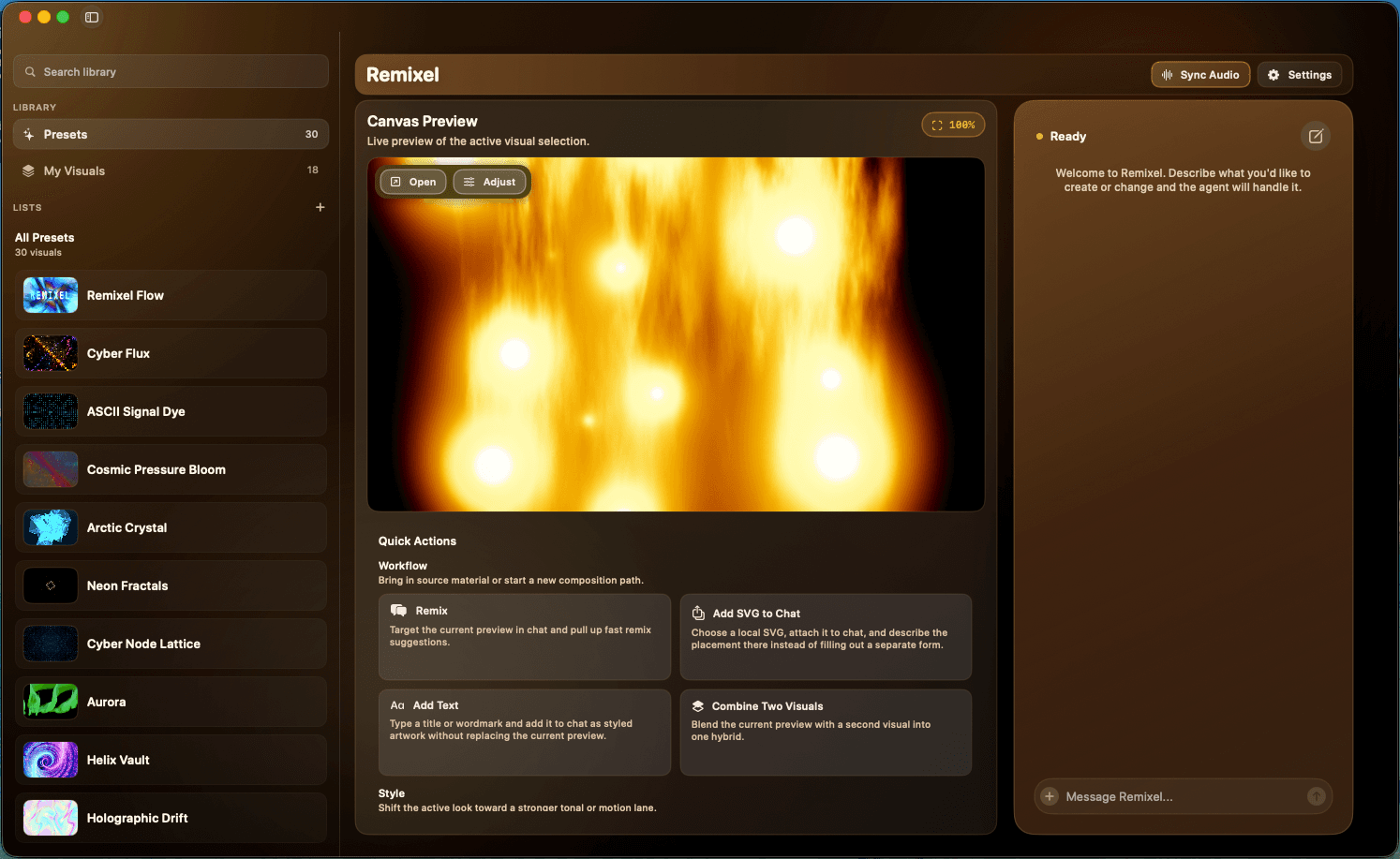
Remixel is a native Mac app with a preset library, a canvas preview, an AI assistant, and a separate canvas window. The Remixel license is free and delivered by email through Polar. AI remixing and scene combinations require a paid OpenAI subscription; that cost is separate from the app.
Check the current download page for the minimum macOS version. For a room setup, connect a display, TV, or projector supported by your Mac, using a suitable cable or adapter. A second display is optional while you learn the controls.
- Claim the free license, download Remixel, and activate it with your emailed key.
- Connect your OpenAI account when you want to remix or combine scenes.
- Have a track ready and test on the display you intend to use at the venue.
Choose a look before adding complexity
Browse the preset library and start with a scene whose motion and palette suit the set. Look at the live preview for a full musical phrase. A dense kaleidoscope can feel very different on a large wall than on a laptop; try a quieter scene as well.
Prepare a small range of moods: an opening look, a more energetic look, and a calm fallback. Start from an existing scene and use the assistant to change one characteristic at a time. A direction such as “slow the motion and keep the current palette” is easier to evaluate than asking for several unrelated changes at once.
Preview each result before presenting it. AI-generated changes can vary, so rehearse the combinations you plan to rely on and keep a familiar scene ready.
Give the audience its own display
In macOS System Settings, open Displays and select the external display. Use an extended desktop so the two screens can show different windows. Mirroring shows the same desktop on both screens, including the controls you are using.
Open Remixel’s separate canvas window, move it to the audience display, and make that window fullscreen. Keep the operator window on your Mac. The library, preview, and assistant can then stay available while the room sees the visual output.
Check the real screen from the audience’s position. Confirm that the picture fills the intended area and that menus, notifications, or unrelated windows are not covering it. If a window opens on the wrong screen after you reconnect a display, reopen it and check its placement again.
Rehearse the changes you will make live
Run a representative part of your set with the same music app, output display, and visual scene you will use later. Switch between your prepared looks, make a small remix, and check that you can still operate the Mac comfortably.
If you want the music to influence the scene, select an audio input in Remixel and test it separately before combining it with other changes. App audio, the system mix, and a microphone serve different purposes; the audio-reactive guide explains how to choose and troubleshoot them.
Treat performance as something to check on your actual setup. A complex scene, a higher display resolution, and other apps on the Mac all affect the experience. If the output stutters, try a simpler scene or a lower display resolution and repeat the rehearsal.
- The audience display shows the canvas and the Mac shows the controls.
- Your opening scene and fallback scene both look good on the room’s screen.
- Audio reactivity responds to the intended source.
- You have tested switching scenes and recovering the canvas after a display reconnect.
If the room is showing the wrong thing
Seeing the whole Mac desktop usually means the displays are mirrored or the wrong window is fullscreen. Recheck the extended-desktop setting, then place Remixel’s canvas on the audience display. If macOS does not detect the screen at all, check its input selection, connection, and your Mac’s display support before changing the visual.
If the canvas works but a remix request does not, check OpenAI sign-in and subscription access. Those are separate from the free Remixel license. If the visual plays but does not react to music, check the selected audio source and its permissions using the companion guide.
See a Remixel scene
Mosaic Prism, recorded from Remixel’s output. This is a silent visual example; test audio response with your own music in the Mac app.